Product Marketplace: getting your products tested by creators
Discover the most-read articles
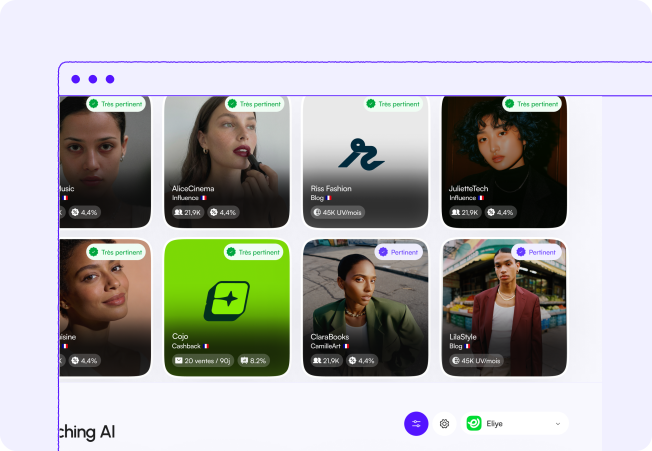
The Product Marketplace is the showcase where advertisers list products to be tested and where content creators ask to receive them. The creator tries the product, talks about it to their community, and the affiliate partnership created on acceptance then pays a commission on the sales generated.
Publisher side, request a product to test
Products are displayed in the Products marketplace, reached from the Marketplace menu (Tools section) or from the Product Marketplace button on your Product testing page.
- Open the Products marketplace and narrow the list with the Categories, Countries and Programs filters, or with free-text search. The New and Featured sorts highlight recent arrivals and the Affilae selection.
- The Hide products I’ve already tested box is ticked by default: untick it to also see the products you have already requested.
- Click a product to open its details: product description, Price, Avg.CPS (the average commission), Commission rate, Delivery time and Targeted countries.
- Click I want to test this product.
- If you manage several profiles, pick the relevant Affiliate profile. Unavailable profiles appear greyed out (type not allowed, blocked partnership, or request already sent).
- Write your message to the brand, then click Send. A confirmation tick appears and the window closes.
Why do you want to review this product ?
The kind of content that will be published ?
And, above all, check that your Affilae profile is up to date !
Track your requests and publish your review
The Product testing menu (Tools section) lists all your requests with their status, plus the Clicks, Sales, Conversion rate and Commissions generated by the product you tested.
- Pending: the brand has not answered yet.
- Accepted: the partnership is active, you can copy your tracking link and wait for the product.
- Refused: the brand declined, with a message explaining why.
- Review submitted: you have sent the link to your content to the brand.
Once the product has arrived and your content is live, click Add review, fill in the Url to review and, if you wish, a Comment for the advertiser. The action stays disabled until the request is accepted: the tooltip then reads « The product request has not been accepted yet. »
Advertiser side, list products and handle requests
The Product requests menu (Tools section of the sidebar) opens two tabs: Product requests and My products.

Put a product in the showcase
- Open the My products tab and click the add button, top right (tooltip Add a product).
- Choose the relevant Program.
- Fill in the Product name and the Product url, exactly as they appear on your site.
- Write a Short product description (1,024 characters maximum): material, size, colours, intended use.
- Select the presentation Language (FR, EN or ES) and the Product category.
- Enter the public Price and the Delivery time, expressed in days.
- Add an optional Comment for creators (« Add a short brief for influencers »).

- Upload up to 3 Product pictures. The rule displayed is « Pictures must be at least 500px, in height or width, and be under 6 MB. »
- Finish with Submit.
The counter above the table shows your usage, in the form « 4/10 product created ». The limit is 10 products per program: the add button is disabled at the maximum, with the tooltip « You have reached the maximum of 10 products ».
Each product is then reviewed by the Affilae team. The status moves from Waiting (« Your product is awaiting validation by the Affilae team ») to Accepted or Refused. Only an accepted product appears in the products marketplace. Careful, « Any modification will lead to a new validation request from Affilae »: the product goes back to waiting and temporarily leaves the showcase.
Accept or refuse a test request
- In the Product requests tab, click See the message to read the creator’s pitch before deciding anything.
- Click the pencil next to the status, then choose Accept request or Refuse request.
- A refusal opens the Send a message window, with a Message field (« Please specify the reasons for the refusal ») and the Submit button. The creator receives your explanation.
- Accepting creates the affiliate partnership, as the tooltip states: « You do not have a partnership with this affiliate yet. You can accept a product request to activate the partnership. » The creator immediately gets a tracking link.
- Then ship the product. Affilae does not handle delivery: agree on the address and the carrier with the creator from the Messaging section, reached from the envelope icon on the row.
- When the content goes live, the status becomes Review submitted. The eye icon (« See review ») opens the content, and the chart icon leads to the partnership reporting.
An accepted request can still be refused, and a refused request can be accepted later. Once the review has been submitted, however, the status no longer changes.
Why use the Product Marketplace
- You get authentic content: the creator has genuinely used the product, which makes the review credible to their community.
- You turn a one-off collaboration into a lasting partnership, because the creator is then paid on the sales they generate.
- You recruit already motivated affiliates: they take the first step themselves, product by product.
- You measure the return on every shipment: clicks, sales and commissions are tied to the product tested.
Best practices
- Advertiser: invest in the description and the pictures. They are your only showcase, and the Affilae team validates each entry before publication.
- Advertiser: use the Comment field to guide without constraining (size, available colours, preferred dates). The creator’s freedom of expression is what keeps the content credible.
- Advertiser: avoid editing an already accepted product for a minor fix, it goes back into validation and temporarily disappears from the marketplace.
- Publisher: personalise every message. A generic request is quickly refused, whereas one that explains the planned format and the target audience performs far better.
- Publisher: update your affiliate profile before applying, the brand checks it to decide.
Use cases
- A cosmetics brand launches a new cream. It lists three references, receives eleven requests, accepts four from beauty creators, and collects four test videos within three weeks.
- An outdoor creator is preparing a gear guide. She filters the products marketplace on the Sport category, requests an insulated bottle, tests it on a hike, then publishes her guide with her tracking link and earns a commission on every sale.
- An advertiser wants to recruit without prospecting. He leaves his best-sellers in the showcase and handles requests as they arrive: every acceptance creates a partnership, with no dedicated recruitment campaign.
Related articles
- Listing your program on the marketplace
- Programs marketplace
- Advertisers: get your products featured right at the heart of influencer content
- Product Marketplace: test the products you love
- Content creators: create and share your product universe
Frequently asked questions
Every entry is checked by the Affilae team before publication. The tooltip shown is « Your product is awaiting validation by the Affilae team ». Make sure your program is fully operational and that the entry is complete (description, pictures of at least 500px, price, delivery time). No processing time is guaranteed in the app, so if the wait looks abnormal write to support@affilae.com.
The limit is 10 products per program. The counter above the table shows your usage in the form « 4/10 product created », and the add button is disabled at the maximum with the message « You have reached the maximum of 10 products ». Delete or disable a product to free up a slot.
No, one request per product and per affiliate profile. If all their profiles have already applied, the button reads « You already ask to test this product with all your affiliate profiles ». A creator who manages several profiles can, however, request the product with another profile, provided its type is allowed and the brand has not blocked it.
Several reasons are possible, each shown in place of the button: « You need to have an affiliate profile to test products », « Your rights do not allow you to request a product test », « You can no longer request a test of this product because your content type is not authorized » or « Unfortunately, you cannot request this product test, because the brand has blocked your profile. » First check that you are signed in with a publisher account.
No. Click « See the message » first to read the creator’s pitch, then discuss the content format, the publication date and the delivery address from the Messaging section. You can then decide with full knowledge, and accepting immediately creates the affiliate partnership.
Affilae does not handle shipping. After accepting the request, contact the creator from the Messaging section (envelope icon on the request row) to agree on the address, the carrier and the timing. The phone icon gives access to the affiliate profile contact details once the partnership is active.