

C2S – GTM – Manual
Discover the most-read articles
The manual integration means pasting your Affilae scripts into Custom HTML tags in Google Tag Manager. You keep full control over the code, and you install nothing from the template gallery.
This page covers the manual C2S (client-side) integration. Expect one click tag, one conversion tag, and as many variables as you have order data points to send.
What to know before you start
- The affiliate tag for your website is different for each program.
- The Affilae tag must be added to every page of your site, including the confirmation page.
- Check your CSP configuration before testing.
CSP configuration (server-side)
"default-src 'self'; style-src 'self' 'unsafe-inline'; script-src 'self' 'unsafe-inline' https://static.affilae.com/; img-src 'self' https://static.affilae.com/ https://lb.affilae.com/; frame-src 'self' https://lb.affilae.com/; connect-src https://lb.affilae.com/"
Install Google Tag Manager
Follow Google official documentation to install and configure the GTM container on your site: developers.google.com/tag-platform/tag-manager.
Add the Affilae tag (click tag)
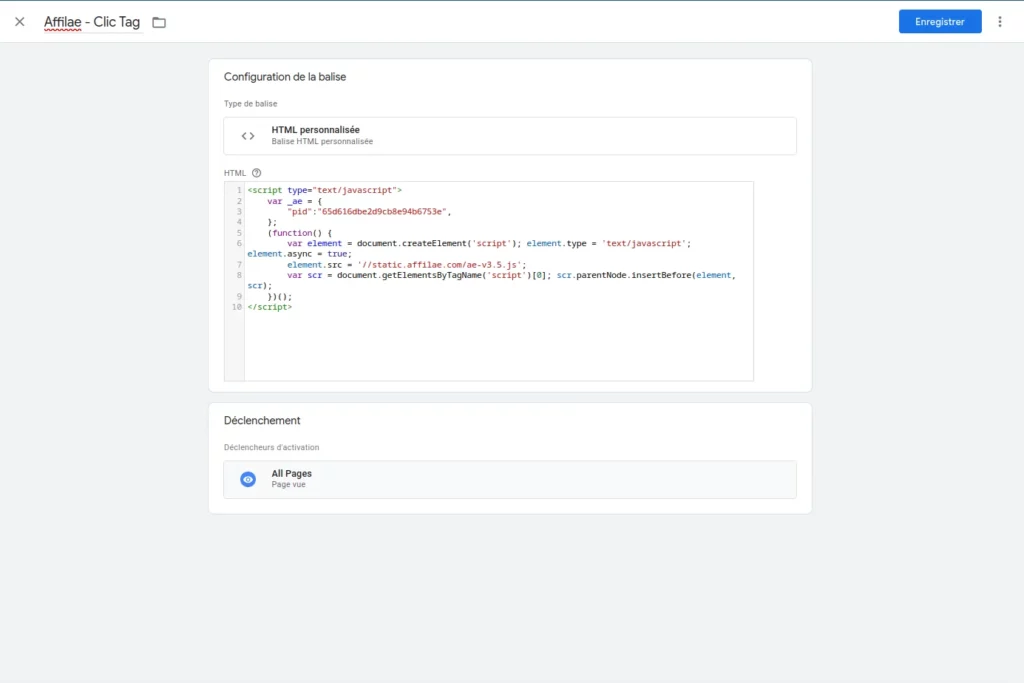
- Log in to your GTM account, then open Workspace > Tags.
- Click New to create a tag.
- Name it, for example Affilae – Click Tag.
- In Tag Configuration, select Custom HTML.
- Paste your Affilae script, available in your program under Settings > tab Tracking > Custom integration (Script) > Track clicks.
- In Trigger, select All Pages.
- Save and publish.
_ae variable with your program ID, for example 5f03acf00000000000000000.
Track conversions
Create the dataLayer variables
Create one variable per conversion data point you want to send.
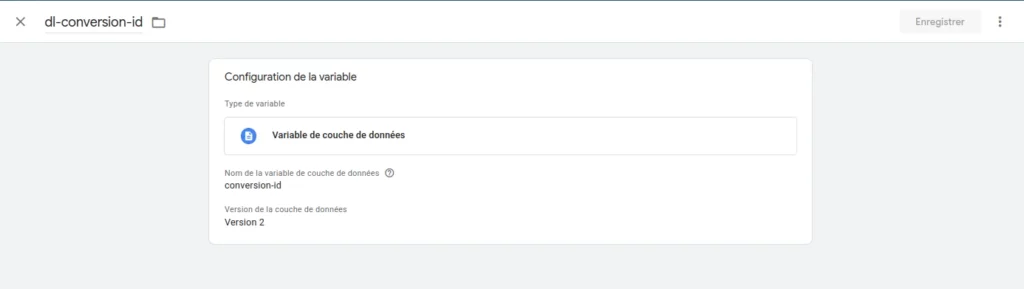
Conversion ID
- Open Variables > New.
- Name: dl_conversion_id.
- Type: Data layer variable.
- Variable name: dl_conversion_id, depending on your dataLayer.
- Version: 2.
Amount excluding VAT
- Open Variables > New.
- Name: dl_conversion_amount.
- Type: Data layer variable.
- Variable name: dl_conversion_amount, depending on your dataLayer.
- Version: 2.
Additional variables, if necessary. Repeat for customer, payment, voucher, and so on.
Create the trigger
- Open Triggers > New.
- Name: purchase.
- Type: usually Purchase or Custom Event.
- Configuration: depending on your conversion event.
- Save.
Create the conversion tag
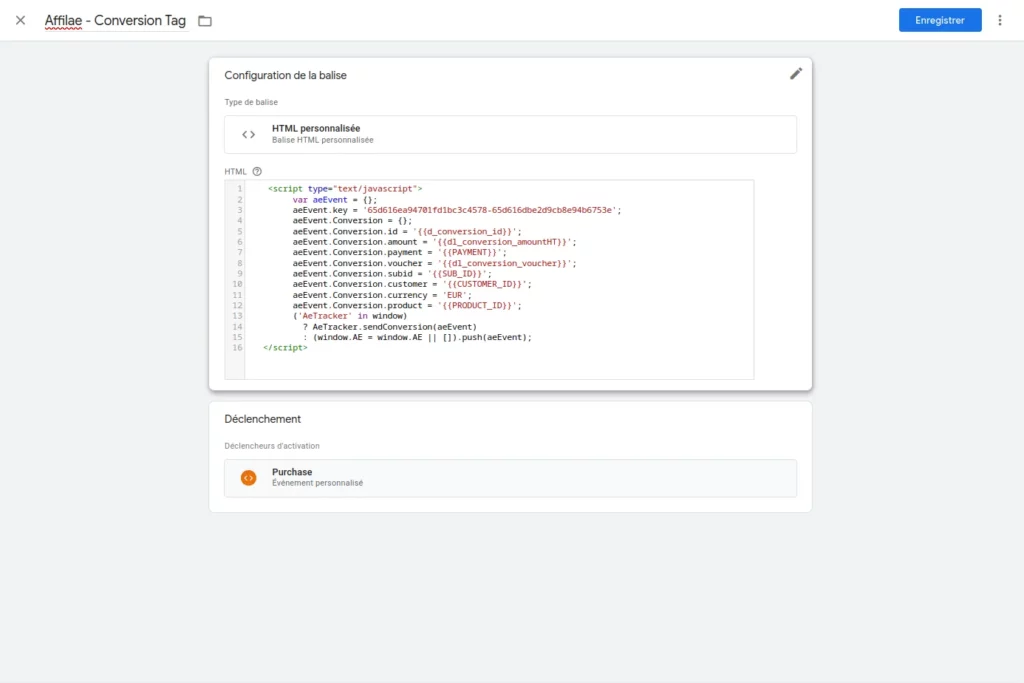
- Open Tags > New.
- Name it.
- Type: Custom HTML.
Retrieve the conversion script
- In Affilae, open Settings > tab Tracking > Custom integration (Script) > Track conversions.
- Copy the script.
- Configure the variables: replace the values with your GTM variables.
- In Trigger, select purchase.
- Save and publish.
Use the full variable path
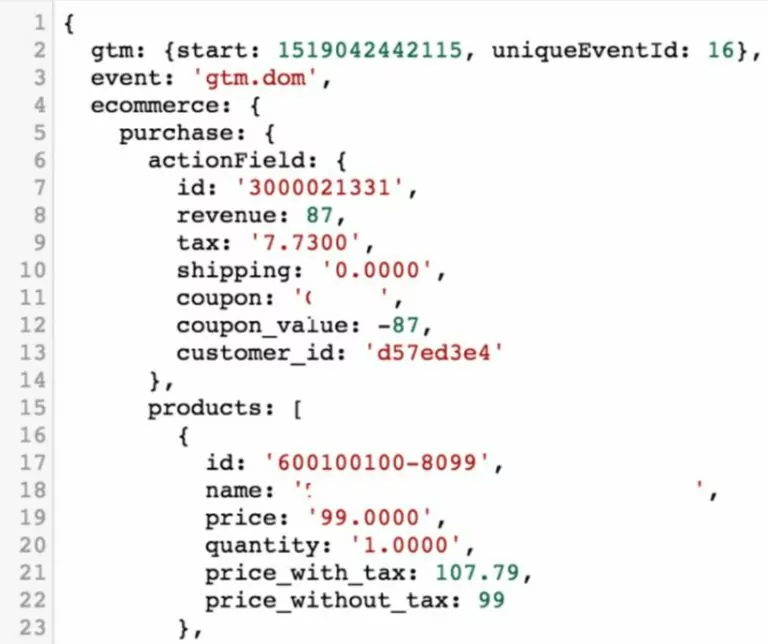
The data layer variable name must be the full path, for example ecommerce.purchase.actionField.id. A shortened name returns no value.
Handle several Affilae programs
- Create a new conversion tag for each program, each with a different KEY.
- Reuse existing variables and triggers where appropriate.
- Test each program individually.
Test before you go live
GTM Preview mode
- Enable Preview mode, then add a tracked link.
- Test a complete journey, from click to conversion.
- Check that the tags are firing.
DataLayer variables
- Check that your variables retrieve the correct values.
- Test with live data.
In Affilae
- Check that clicks are reported.
- Check that conversions are reported.
- Check the amounts and the data.
The other Google Tag Manager integrations
- C2S – GTM – Templates: two ready-made templates from the GTM gallery, with no script to handle.
- S2S – GTM: the conversion is validated server-side, with two containers talking to each other.
Related articles
- Affilae tracking fundamentals
- C2S – Manual
- Testing click and conversion tracking
- Frequently asked questions, technical integration
Frequently asked questions
Voir plus de questions reponses
In Affilae, open Settings, tab Tracking, then the Custom integration (Script) panel. It holds Track clicks then Track conversions, each with a copy button.
Check the Program_ID inside the _ae variable of your click tag. Also check that the tag fires on All Pages, and that your container has actually been published.
Check the dataLayer variables and the KEY in your conversion tag. Then make sure your trigger matches the real conversion event of your website.
Check the variable names in your dataLayer, they must match exactly. Mind the full path too: the data layer variable name reads for example ecommerce.purchase.actionField.id, not id alone.
Create one conversion tag per program, each with its own KEY. Existing variables and triggers can be reused. Then test each program separately.
Yes if your site enforces one. It must allow static.affilae.com and lb.affilae.com. The full line to copy is in the CSP configuration section of this page.
Templates are enough in most cases and update themselves from the gallery. Go manual when you need control over the script, for example to send data the templates do not cover.