

S2S – GTM
Discover the most-read articles
The S2S mode switches your tracking links into redirection mode and validates the conversion on the server side. With Google Tag Manager it requires two containers, one client-side and one server-side, that talk to each other.
This page covers the full setup of both containers, from the linking tag to the Affilae – Server Side tag.
Required architecture
You must have 2 GTM containers:
- a Client-Side container;
- a Server-Side container.
These two containers must communicate with each other.

Client-Side configuration
Create the Server-Side tag
In your Client-Side container:
- Go to Tags > New, then name the tag.
- Type: Google Tag Manager (Server-Side).
- Server-Side container Tag ID: GTM-XXXXXXX.
- Server URL: the variable holding your server-side domain.
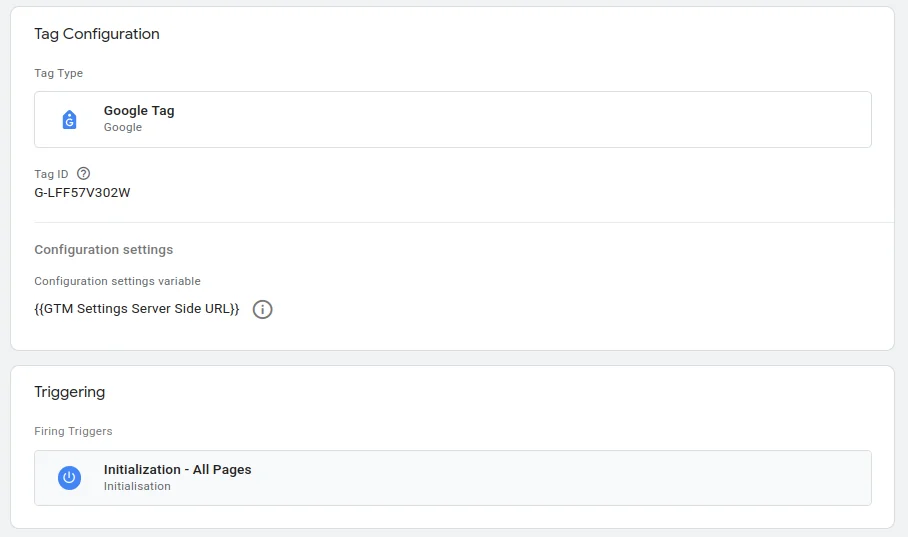
How to find your Server-Side Tag ID
- Open your Server-Side container.
- Click Admin.
- Select Account Information.
- Copy the container ID, in the GTM-XXXXXXX format.
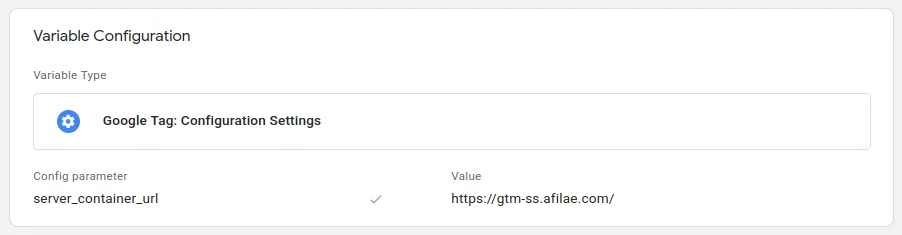
Configure the Server URL
- Go to Variables > New.
- Name: Affilae – Server Side.
- Value: your server-side domain, for example
https://sgtm.yoursite.com.
Trigger the tag
- Trigger: All Pages and Purchase.
- Save and publish.
Server-Side configuration
Create the Affilae Server-Side tag
In your Server-Side container:
- Go to Tags > New, then name the tag.
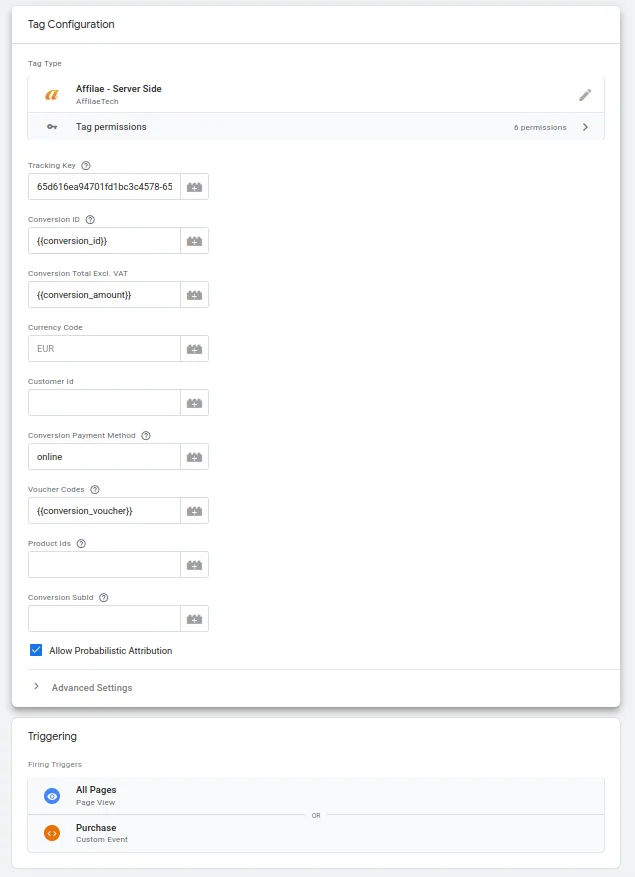
- As the tag type, search for Affilae – Server Side.
- If the type is not available, import the template from the gallery.
Create the required variables
Key, your Affilae key
- Go to Variables > New.
- Name: affilae_key.
- Value: your Affilae key, found in Settings > tab Tracking.
Amount, excluding tax
- Go to Variables > New.
- Name: conversion_amount.
- Event name: value, or according to your dataLayer.
Currency
- Go to Variables > New.
- Name: conversion_currency.
- Value: EUR, or your currency.
Fill in the Affilae tag
- Key:
{{affilae_key}} - Amount:
{{conversion_amount}} - Currency:
{{conversion_amount}}
The trigger you must not miss
The trigger must be configured with the type All Pages + Purchase.
How the two containers communicate
- Client-Side sends data to the Server-Side.
- Server-Side processes the data and sends it to Affilae.
- Server-Side sends the confirmation back to the Client-Side.
To verify the link, enable Preview mode on both containers, test a full journey, and check that the data flows correctly.
Pre-launch checklist
- Affilae program set to S2S mode.
- Server-Side container functional.
- Client-Side tag configured with the correct Tag ID.
- Server-Side variables created.
- Affilae – Server Side tag configured.
- Allow Probabilistic Attribution enabled.
- All Pages + Purchase trigger configured.
Tests to perform
- Disable your ad blockers.
- Enable GTM Preview mode on both containers.
- Test an affiliate click followed by a conversion.
- Check that data is transmitted between the containers.
- Check that the conversion is recorded in Affilae, with the right amount and currency.
The other Google Tag Manager integrations
- C2S – GTM – Templates: client-side tracking with the two Affilae templates from the GTM gallery.
- C2S – GTM – Manual: client-side tracking with your scripts pasted into Custom HTML tags.
Related articles
- S2S – Server-to-Server
- Affilae tracking fundamentals
- Testing click and conversion tracking
- Frequently asked questions, technical integration
Frequently asked questions
Voir plus de questions reponses
Yes. The Client-Side container collects on the site and forwards to the Server-Side container, which sends the conversion to Affilae and returns the confirmation. Without both, the conversion is not validated server-side.
Open your Server-Side container, click Admin, then Account Information. Copy the container ID, in the GTM-XXXXXXX format.
Verify the client to server link, then the All Pages + Purchase trigger. Next make sure S2S mode is enabled in Affilae and that the variables are correctly mapped. Finish with a test on a real order.
It must be ticked, at the bottom of the Affilae – Server Side tag. Leaving it unticked is one of the most common causes of missing conversions.
Import the template from the Community Template Gallery, then start creating your tag again. The type becomes selectable in the list.
Yes. Implementing a CMP remains mandatory, whatever tracking mode you choose.
This integration does not work. Set the URL format to Server-to-Server (S2S) in Settings, section Global settings. That setting is what switches your tracking links to redirection and allows server-side validation.