

S2S – Appsflyer
Discover the most-read articles
AppsFlyer is a mobile attribution platform. Paired with Affilae Server-to-Server tracking, it lets you track installs and in-app events generated by your affiliates. Affilae collects the click, AppsFlyer does the attribution, then sends the conversions back to Affilae.
How it works
- The visitor clicks an Affilae tracking link.
- The click is passed to AppsFlyer through the attribution link.
- AppsFlyer performs the attribution, not Affilae.
- AppsFlyer automatically sends the configured conversions and events to Affilae.
- Affilae picks up the data it needs to compute commissions.
Step 1, configure AppsFlyer
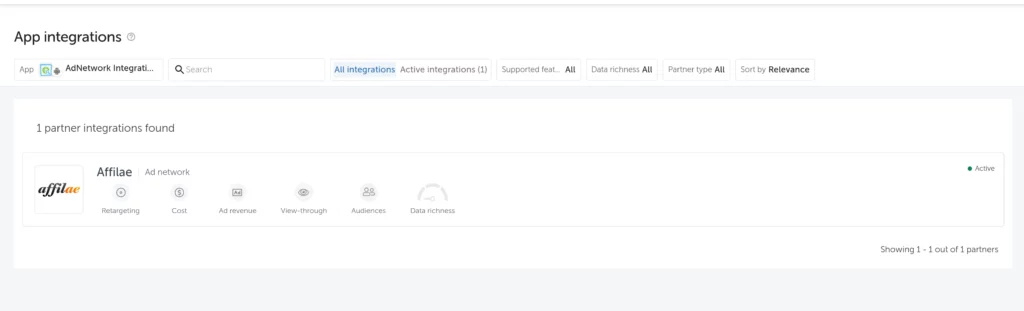
Start by adding Affilae as a partner.
- In AppsFlyer, open the Integrated partners section.
- Search for Affilae.
- Add Affilae as a partner.
- Configure the partner for the apps concerned.
Configure each app, iOS and Android
The setup is done app by app. For each one:
- Open the app’s general settings.
- Add an Affilae Key.
- Check that this key is the one used for the events you want to track.
The Affilae Key maps AppsFlyer events onto Affilae tracking. Under General settings, that value is optional: you can leave it empty or enter none. What really matters is the link between your events and the Affilae Key.
Set up the events
- List the events you want to track: install, purchase, or any other useful event.
- Map each event to the right Affilae Key.
- Check that those events are enabled for the Affilae partner, and that In-app event postbacks is turned on.
Step 2, get the OneLink
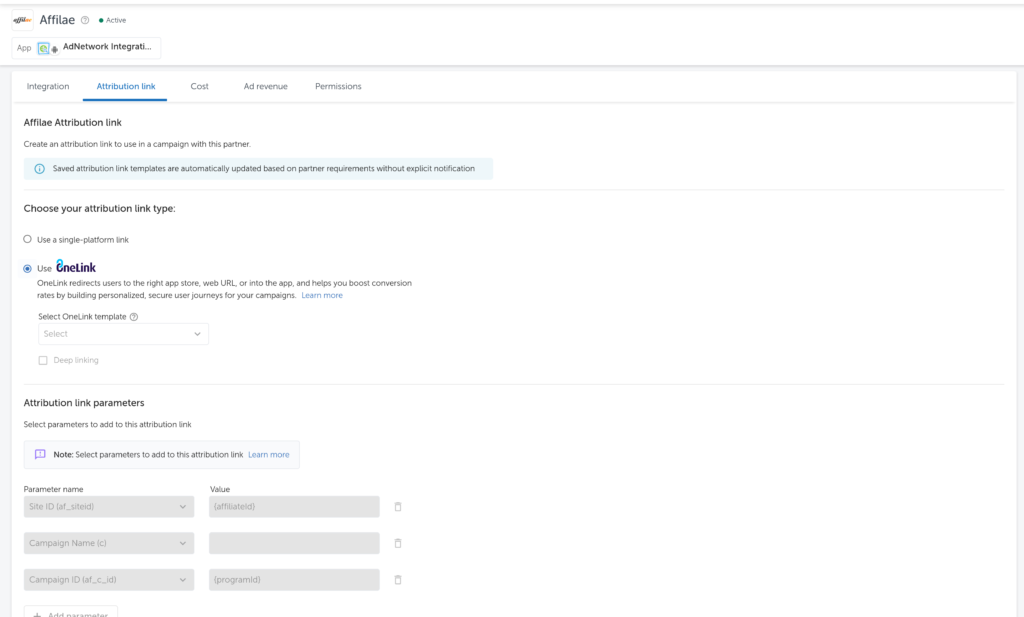
- In AppsFlyer, open Attribution Link.
- Select or create the OneLink matching your app.
- Check its configuration.
- Copy the attribution link it generates.

The link looks like this:
The parameters to keep
| Parameter | What it does |
|---|---|
| pid | Identifies the AppsFlyer media source |
| af_siteid | Identifies the affiliate |
| af_c_id | Identifies the program |
| clickid | Identifies the click uniquely |
| af_click_lookback | Sets the post click attribution window |
The af_click_lookback window
This parameter sets how long after the click AppsFlyer can still credit an install to it. The default is 7 days, and it is configurable in AppsFlyer: accepted values currently range from 1 to 30 days.
Pick a duration that matches your attribution strategy: a long window credits more conversions to your affiliates, a short one limits them to quick installs.
OneLink and deep linking
If your program has no mobile app, none of this concerns you. As soon as an app is involved, AppsFlyer requires a universal link, the OneLink, able to handle iOS, Android and a web fallback on its own.
The OneLink adapts the journey to the visitor’s situation:
- on desktop;
- on mobile without the app installed: off to the store, or to your website, depending on the template chosen;
- on mobile with the app installed: it opens straight away.
Deep linking goes further: instead of simply opening the app, it sends the visitor to a specific page or piece of content inside it. The parameters driving this are deep_link_value, af_ios_url, af_android_url and af_web_dp, and they are declared in the landing page parameters, in the next step.
Retargeting, only when it really is retargeting
If the link is used for a retargeting campaign, the OneLink must carry this parameter:
It tells AppsFlyer the link belongs to a retargeting campaign. Do not add it to every link by default: keep it for the campaigns concerned.
Step 3, configure Affilae
- In Affilae, open Configuration.
- Open the Global Settings section.
- Open URL tracking management.
- Check that the program’s URL format is indeed Server-to-Server (S2S).
- Turn on Redirect clicks through an attribution partner (advanced). The two fields below only appear afterwards.
- Paste the AppsFlyer OneLink into Partner redirection URL.
- Fill in the Landing page query parameter with the destination parameters, separated by commas.

This option exists for exactly this case: the application’s hint names mobile attribution platforms, AppsFlyer among them.
Step 4, the final test
Before testing, check these four settings in AppsFlyer. They come up again and again in setups that do not work.
- Advanced Privacy: must be disabled.
- Re-engagement: must be enabled.
- Deep link: must be ticked, and actually configured.
- Postback source: the for users from menu on All media sources, including organic.
- Run a test click on mobile, using an Affilae tracking link.
- Check that AppsFlyer receives the click.
- Install the app if needed.
- Trigger a configured event, a purchase for instance.
- Check that the event shows up in AppsFlyer.
- Finally, check that the data reaches Affilae.
Key points
- The Affilae program must be in S2S, therefore on redirection links.
- AppsFlyer does the attribution and sends the conversions back to Affilae.
- The setup is done for each app, iOS and Android.
- The Affilae Key must be mapped to the events you track.
- The OneLink must be configured before being pasted into Affilae.
- The pid, af_siteid, af_c_id and clickid parameters must stay in the link.
- af_click_lookback ranges from 1 to 30 days, 7 by default.
- Deep linking is handled in the OneLink Template.
- is_retargeting=true is only for retargeting links.
- The test must cover the click, the install and an in-app event.
Related articles
- S2S, Server-to-Server
- Affilae tracking fundamentals
- Testing click and conversion tracking
- All available integrations
Frequently asked questions
Voir plus de questions reponses
S2S switches your links to redirection and validates the conversion server side. That is what lets AppsFlyer send conversions to Affilae automatically. Without that setting, the integration cannot work.
In AppsFlyer, open Attribution Link, then take the link matching the OneLink or Template used for your app.
Check the ones identifying the source, the affiliate, the program and the click: pid, af_siteid, af_c_id and clickid. The af_click_lookback parameter also sets the post click attribution window.
It depends on af_click_lookback. The window is 7 days by default, and it is configurable in AppsFlyer between 1 and 30 days. Past that duration, the install is no longer tied to the click.
It maps AppsFlyer events onto Affilae tracking. It is set app by app, and must be used with the events you want to pass on. Under General settings it is optional: you can leave it empty or enter none.
Yes. The setup is done app by app: each one has its own configuration and its own events.
Check that you filled in both fields, not just the first one. The application’s hint is explicit: the partner redirection URL and the landing page query parameter are both required. Also check that Redirect clicks through an attribution partner (advanced) is actually turned on.
In this order: that the Affilae program is in S2S, that the OneLink used is the one for the app being tested, that the link carries the expected parameters, that the click shows up in AppsFlyer, and finally that the OneLink Template and redirections are properly configured.
The link probably carries a hard coded value where a token belongs. Replace it with {affiliateTrackingId}, which Affilae fills in on every click. The other available tokens are {affiliateName}, {affiliateGroup}, {programName}, {programId}, {month}, {year} and {adId}.
The application rejects misplaced # and & characters. Copy the link from AppsFlyer without editing it by hand, then add your tokens.
No. That parameter should only appear on links used for a retargeting campaign. Adding it everywhere means declaring campaigns to AppsFlyer that are not retargeting at all.
Yes. Once the integration is correctly configured, AppsFlyer passes the configured conversions and events to Affilae automatically.