

C2S – WooCommerce
Discover the most-read articles
The Affilae plugin for WooCommerce sets up click and conversion tracking on your WordPress store, with no code to write. You configure it with your Program ID and one conversion key per commission rule.
Install the plugin on your WordPress
- Download the file Affilae_WC_1.6.1.
- Install it in your WordPress like any other plugin.
- Go to Plugins > Installed Plugins.
- Activate the Affilae plugin.
A new Affilae menu then appears in the sidebar of your WordPress admin.
Configure click tracking
This step connects your store to your program, through the Program ID.
Retrieve your Program ID in Affilae
- In the sidebar, open Manage programs, then click your program name.
- Click Configuration.
- At the top of the page, open the Tracking tab.
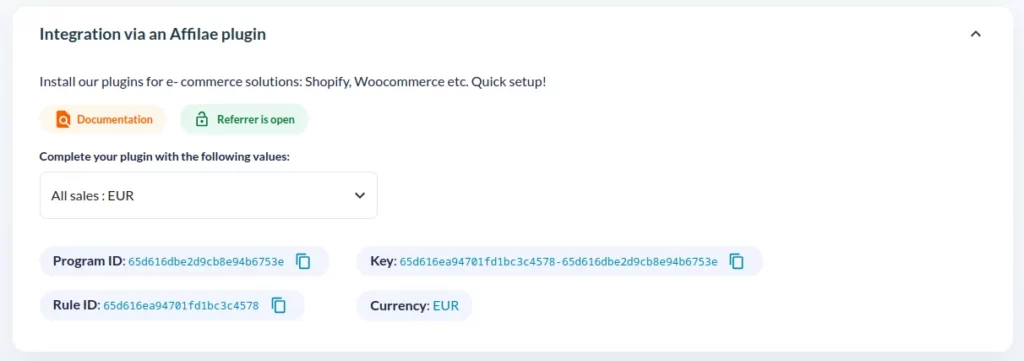
- Expand the Integration via an Affilae plugin section.
- Copy the Program ID value with the copy icon.
Paste the Program ID into WordPress
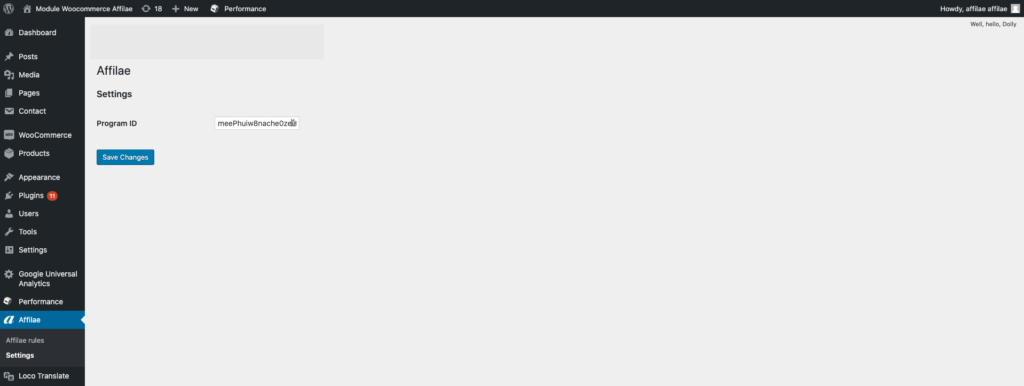
- In your WordPress admin, click on Affilae (new menu).
- Click on Settings in the submenu.
- Paste the Program ID into the dedicated field.
- Save.
Configure sales tracking
Create one rule in the plugin for each commission rule you have in Affilae. Every rule carries its own conversion key.
Create the rule
- In the WordPress Affilae menu, open Affilae rules.
- Click on Add.
- Give it the same name as in your Affilae account, for example “All products”.
Retrieve the conversion code
- In Affilae, go back to Configuration > Tracking tab > Integration via an Affilae plugin.
- Select the matching rule in the dropdown list.
- Copy its Key, for example
58b57bd2e8face9d048b4581-58b57b35c2f06d67ab6423c5. - Paste this code into the Code field of the WordPress rule.
Choose the product categories
- For all categories, leave everything unchecked: that is the default behavior.
- For specific categories, only check the relevant ones.
- Click the Publish button.
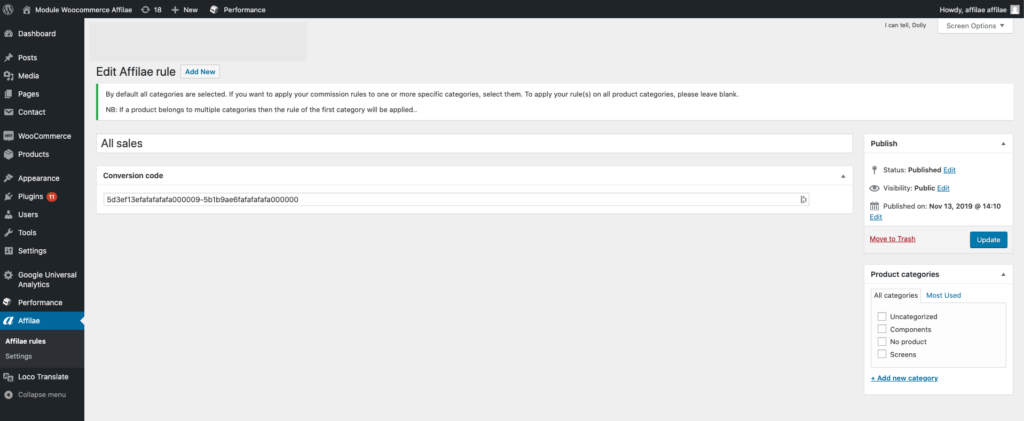
Repeat the process for every rule configured in Affilae. Each rule can be linked to its own product categories.
Test your setup
- Perform click and conversion tests.
- Check in your Affilae account that clicks and conversions are recorded.
Related articles
- C2S – WooCommerce – Manual
- C2S – Manual
- Testing click and conversion tracking
- Affilae tracking fundamentals
- Understanding and setting up SubIDs
Frequently asked questions
In Affilae, open Manage programs, click your program, then Configuration and the Tracking tab. The Integration via an Affilae plugin section shows the Program ID, Rule ID, Key and Currency of the selected rule.
First verify that the Program ID pasted into the plugin is correct. Then follow the Affilae conversion test documentation. If the problem remains, contact support with your configuration details.
Verify that the rule KEY is correct. Then follow the Affilae conversion test documentation. If conversions are still missing, contact Affilae support with your configuration details.
Yes. Create as many rules as you have configured in Affilae, and give them the same names. Each rule can then be linked to its own product categories.
Yes. On each plugin rule, you check the relevant categories. If you check nothing, the rule applies to all categories: that is the default behavior.
Yes. The plugin is compatible with HPOS orders, the High-Performance Order Storage of WooCommerce.