

S2S – AppsFlyer
Discover the most-read articles
AppsFlyer is a mobile attribution platform. Paired with Affilae Server-to-Server tracking, it lets you track installs and in-app events generated by your affiliates. Affilae collects the click, AppsFlyer does the attribution, then sends the conversions back to Affilae.
How it works
- The visitor clicks an Affilae tracking link.
- The click is passed to AppsFlyer through the attribution link.
- AppsFlyer performs the attribution, not Affilae.
- AppsFlyer automatically sends the configured conversions and events to Affilae.
- Affilae picks up the data it needs to compute commissions.
Step 1, configure AppsFlyer
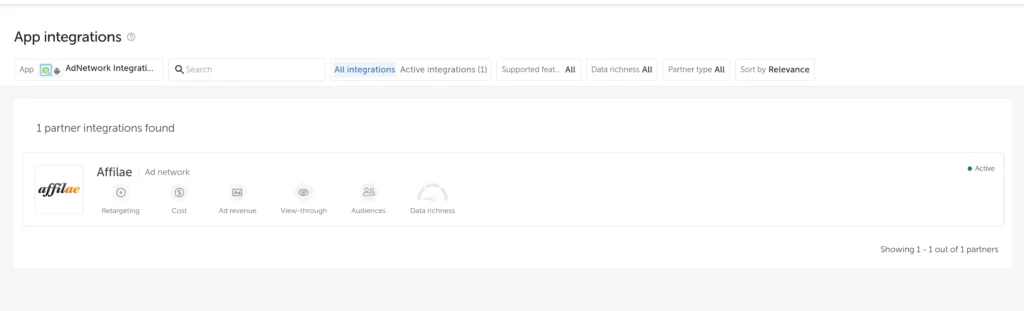
Start by adding Affilae as a partner.
- In AppsFlyer, open Collaborate > Partner Integrations, Marketplace tab.
- Search for Affilae, then click its card or Integrate.
- In the Integration tab, turn on Activate partner.
- Do this for each app concerned. Affilae then shows up in the Active integrations tab.
Configure each app, iOS and Android
The setup is done app by app, iOS and Android: each one has its own settings and its own events.
Prepare your rules in Affilae first: a rule dedicated to app sales, and a rule dedicated to installs if you reward them. Check that they apply to the relevant affiliate groups. Each rule’s Key is in Configuration, Tracking tab: expand Integration via an Affilae plugin and pick the rule in Rules and currencies.
Set up the events
- List the events you want to track: install, purchase, or any other useful event.
- Map each event to the right Affilae Key.
- Only enable for Affilae the events mapped to an Affilae Key. Browsing events (af_content_view, af_list_view, af_add_to_cart…) play no part in commissions: Affilae does not use them.
- Check that those events are enabled for the Affilae partner, and that In-app event postbacks is turned on.
- For each purchase event, set Send revenue to Values & revenue. Otherwise AppsFlyer does not send the amount or the order number to Affilae.

What your app must send
For each purchase, the event your app sends to AppsFlyer (for instance af_purchase) must carry these three parameters:
- af_revenue: the order amount.
- af_currency: the currency, as a three-letter code (EUR, USD…).
- af_order_id: the order number, different for each purchase.
The order number becomes the conversion’s identifier in Affilae (ID column). You can then find the matching order when you validate the conversion, and each purchase by the same user is recorded as a separate conversion.
Step 2, get the OneLink
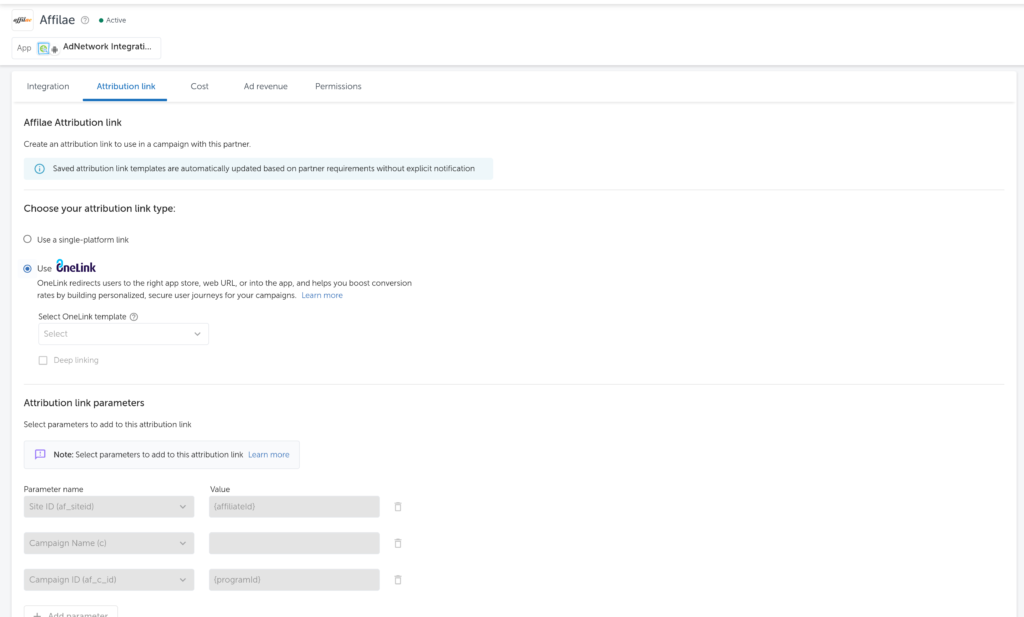
- In AppsFlyer, open Attribution link.
- Select or create the OneLink matching your app.
- Check its configuration.
- Copy the attribution link it generates.
The link looks like this:
The parameters to keep
| Parameter | What it does |
|---|---|
| pid | Identifies the AppsFlyer media source |
| af_siteid | Identifies the affiliate |
| af_c_id | Identifies the program |
| clickid | Identifies the click uniquely |
| af_click_lookback | Sets the post-click attribution window |
The af_click_lookback window
This parameter sets how long after the click AppsFlyer can still credit an install to it. The default is 7 days, and it is configurable in AppsFlyer: accepted values currently range from 1 to 30 days.
Pick a duration that matches your attribution strategy: a long window credits more conversions to your affiliates, a short one limits them to quick installs.
On the Affilae side, the rule’s Tracking duration (in days) counts too: an event is only matched to the affiliate’s click if that click is more recent than this duration when the event reaches Affilae. A later purchase is not matched to the click, even if AppsFlyer still attributes it to Affilae. Set it at least as long as af_click_lookback, and long enough to cover the purchases you want to reward after the install.
OneLink and deep linking
If your program has no mobile app, none of this concerns you. As soon as an app is involved, AppsFlyer requires a universal link, the OneLink, able to handle iOS, Android and a web fallback on its own.
The OneLink adapts the journey to the visitor’s situation:
- on desktop: off to your website;
- on mobile without the app installed: off to the store, or to your website, depending on the template chosen;
- on mobile with the app installed: it can open straight away, depending on your OneLink and on the app the link is opened in. Some apps, Instagram for instance, open links in their own browser, without opening your app. After a tracking link’s redirect, iOS does not always open the app: see “If something does not come through”.
Deep linking goes further: instead of simply opening the app, it sends the visitor to a specific page or piece of content inside it. The parameters driving this are deep_link_value, af_ios_url, af_android_url and af_web_dp, and they are declared in the Landing page query parameter, in step 3.
The is_retargeting=true parameter, recommended
We recommend adding this parameter to your OneLink:
With it, AppsFlyer credits your affiliates for:
- new installs, exactly as without the parameter;
- reinstalls by users who had the app before;
- users who already have the app and open it from an affiliate link, for their events during the re-engagement window set in AppsFlyer (30 days by default).
Without it, the last two cases do not appear in Affilae. If you only want to reward new users, do not add it, or map the Affilae Key only to events specific to new users.
Step 3, configure Affilae
- In Affilae, open Configuration.
- Global Settings section: check that the program’s URL format is indeed Server-to-Server (S2S).
- Then, URL tracking management section: turn on Redirect clicks through an attribution partner (advanced). The two fields below only appear afterwards.
- Paste the AppsFlyer OneLink into Partner redirection URL.
- Fill in the Landing page query parameter with the destination parameters, separated by commas. Each parameter you list must already be in your OneLink with a full address (https://…); otherwise it is ignored and the visitor lands on the OneLink’s default destination.
- Click Save.
This option exists for exactly this case: the application’s hint names mobile attribution platforms, AppsFlyer among them.
Step 4, the final test
The test replays a customer’s journey: a click on an affiliate link, the app install, then a purchase. Run it on a phone, never on a computer: on a computer, the OneLink sends visitors to your website, and no install is possible.
Prepare the test
- A test partnership in Affilae, to generate the link. Your app rules must apply to its group.
- A phone that never had the app, or registered in AppsFlyer as a test device (Test devices). Otherwise AppsFlyer counts a reinstall, which is not attributed to your click.
- On iPhone, open Settings > Privacy & Security > Tracking, turn on Allow Apps to Request to Track, then accept your app’s tracking request. Also turn off iCloud Private Relay for the test.
- In AppsFlyer: re-engagement on, deep link configured, postbacks on All media sources, including organic.
- One person, one phone at a time, from the country your program targets. Write down the time of each action.
The test, step by step
| # | Do | Check |
|---|---|---|
| 1 | In Affilae, open the Link builder, pick the test partnership and a page of your website, then copy the Tracked link. | The link starts with https://lb.affilae.com/r/ and contains your OneLink in encoded form: that is normal, do not edit it. |
| 2 | Send the link to yourself by text message or email, and tap it on the phone. | In Affilae, program menu, Clicks: a new row shows up within seconds, with your test partnership. |
| 3 | The store opens: install the app, then open it. | In AppsFlyer, the install is attributed to the affilae2_int media source, for instance in Raw data export > Installs, if your AppsFlyer plan includes it. Allow up to 30 minutes. |
| 4 | Make a purchase in the app and write down its order number. | In AppsFlyer, Raw data export > Postbacks: the postback to Affilae shows up, with response code 200. |
| 5 | In Affilae, open Conversions and paste the order number into the ID search. | The conversion shows up with its amount and your test partnership. Its Conversion funnel shows the click from step 2. |
| 6 | Refuse the test conversion: tick it, click Refuse, choose the Test order or tracking error reason, then click Confirm. If it is locked, refusing is no longer offered: on 2026 plans, select it and click Contest; otherwise, contact support. | A test conversion is still a real conversion, with a commission to pay. Details in Testing click and conversion tracking. |
If something does not come through
| What you see | What to check |
|---|---|
| No click in Clicks | The link comes from the Link builder and was not edited. The program is in S2S, with Redirect clicks through an attribution partner (advanced) on and both its fields filled in. |
| The link opens your website instead of the store | You are testing on a computer, or the OneLink Template does not send to the store. |
| The link opens the store although the app is installed | Send yourself the OneLink alone by text message and tap it: a link pasted into Safari’s address bar never opens the app. If it opens the store, your app does not recognize this OneLink’s domain. If you set up a custom domain in AppsFlyer (Branded Links, for instance onelink.your-brand.com), test the same link with that domain: if it opens the app, replace only the domain at the start of the link in Partner redirection URL. For instance: https://your-app.onelink.me/AbCd?pid=affilae2_int&… becomes https://onelink.your-brand.com/AbCd?pid=affilae2_int&…. Otherwise, your developers must add the OneLink domain to the app’s associated domains (Associated Domains on iOS). |
| The OneLink alone opens the app, but the Affilae link does not | After a redirect from another domain, iOS does not always open the app, and AppsFlyer then sends to the store. In Partner redirection URL, add to the OneLink your app’s URI scheme in af_dp (for instance af_dp=your-app://) and af_force_deeplink=true: Safari then asks the user whether to open the app. In other browsers, and in in-app browsers, the result is not guaranteed. Also test on a phone without the app: it must land on the store. |
| The install is not attributed to affilae2_int | The phone had the app before, tracking is not allowed on the iPhone, iCloud Private Relay is on, or the install happened after the af_click_lookback window. |
| Some iOS conversions are missing, while Android works | Advanced Privacy is on: for iOS users who declined tracking, AppsFlyer does not send the click ID (see step 1). |
| Install attributed, but no postback to Affilae | Activate partner or In-app event postbacks is off, or the event is not mapped to an Affilae Key. |
| Postback sent (code 200), but no conversion in Affilae | The Key belongs to another program’s rule, the rule does not apply to the test partnership’s group, the currency sent is not one of the rule’s Currencies, or the test was run outside the targeted country. Otherwise, contact us (below). |
| Conversion at €0 | Send revenue is not on Values & revenue, or the app does not send af_revenue. |
| No order number, or a second purchase is missing | The app does not send af_order_id, or sends the same one for every purchase. |
| Every install creates a sale | The General settings Key field holds your purchase rule’s Key (see step 1). |
Key points
- The Affilae program must be in S2S, therefore on redirection links.
- AppsFlyer does the attribution and sends the conversions back to Affilae.
- The setup is done for each app, iOS and Android.
- The Affilae Key must be mapped to the events you track.
- The General settings Key field holds the install rule’s Key, or stays empty.
- Each purchase sends af_revenue, af_currency and af_order_id, with Send revenue set to Values & revenue.
- The OneLink must be configured before being pasted into Affilae.
- Never give your OneLink to your affiliates: paste it into your program configuration, and the Link builder uses it automatically.
- The pid, af_siteid, af_c_id and clickid parameters must stay in the link.
- af_click_lookback ranges from 1 to 30 days, 7 by default.
- The rule’s Tracking duration covers af_click_lookback and the purchases to reward after the install.
- Deep linking is set in the OneLink Template, and its parameters are declared in step 3.
- is_retargeting=true is recommended: it also credits your affiliates for reinstalls and existing users.
- The test must cover the click, the install and an in-app event.
Related articles
- S2S, Server-to-Server
- Affilae tracking fundamentals
- Testing click and conversion tracking
- All available integrations
Frequently asked questions
See more questions
S2S switches your links to redirection and validates the conversion server side. That is what lets AppsFlyer send conversions to Affilae automatically. Without that setting, the integration cannot work.
In AppsFlyer, open Attribution link, then take the link matching the OneLink or Template used for your app.
No. Paste it into your program configuration: the Link builder adds it automatically to your affiliates’ tracked links. A OneLink shared as is, or inserted by hand into an Affilae link, may not record clicks and conversions.
Check the ones identifying the source, the affiliate, the program and the click: pid, af_siteid, af_c_id and clickid. The af_click_lookback parameter also sets the post-click attribution window.
It depends on af_click_lookback. The window is 7 days by default, and it is configurable in AppsFlyer between 1 and 30 days. Past that duration, the install is no longer tied to the click. After that, a purchase is only matched to the click within the Affilae rule’s Tracking duration, counted from the click.
An Affilae rule’s Key is mapped to an AppsFlyer event: it tells which rule rewards that event. The Key field under General settings is for installs: your install rule’s Key, or empty (none) if you do not reward them.
Yes. The setup is done app by app: each one has its own configuration and its own events.
Check that you filled in both fields, not just the first one. The application’s hint is explicit: the partner redirection URL and the landing page query parameter are both required. Also check that Redirect clicks through an attribution partner (advanced) is actually turned on.
In this order: that the Affilae program is in S2S, that the OneLink used is the one for the app being tested, that the link carries the expected parameters, that the click shows up in Clicks, on the Affilae side, and finally that the OneLink Template and redirections are properly configured.
The link probably carries a hard-coded value where a token belongs. Replace it with {affiliateTrackingId}, which Affilae fills in on every click. The other available tokens are {affiliateName}, {affiliateGroup}, {programName}, {programId}, {month}, {year} and {adId}.
Yes, it is recommended. New installs are still attributed as usual, and your affiliates are also credited for reinstalls and for existing users who open the app from their link. If you only want to reward new users, do not add it.
Your phone most likely had the app before: AppsFlyer then counts a reinstall, which is not attributed to the new click. Test again on a device that never had the app, or register it as a test device in AppsFlyer.
Yes. Once the integration is correctly configured, AppsFlyer passes the configured conversions and events to Affilae automatically.