

C2S – Prestashop
Discover the most-read articles
The Affilae module for PrestaShop installs click and conversion tracking straight from your store back office. You paste one script, you create your rules, and the module reports the orders.
It manages commission rules by product category, as well as the differentiation between new and returning customers.
Install the module
Download the module
- Download the Affilae module v1.18.
- Unzip the ZIP file.
Install it in PrestaShop
- In the PrestaShop back office, open Modules.
- Click Add a module.
- Select the downloaded ZIP file.
- Let the automatic installation run.
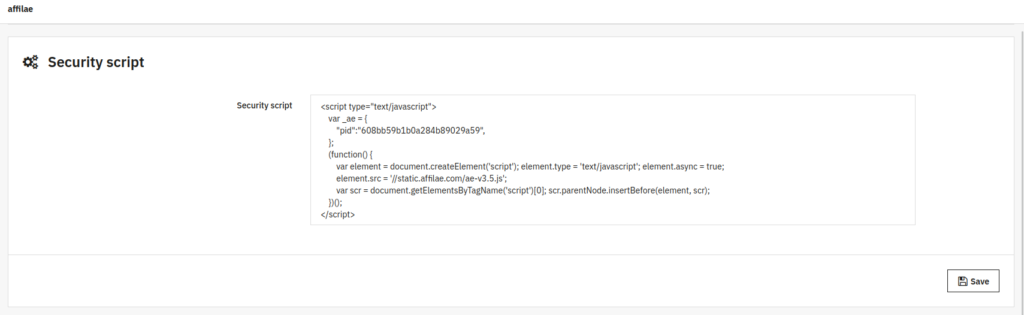
Add the security script (click tag)
Where to find it: in Affilae, open Settings > tab Tracking > Custom integration (Script) > Track clicks.

How to install it
- Copy the full script from your Affilae interface.
- Paste it into the PrestaShop module configuration, field Security script.
- Click Save.
Configure your commission rules
For a general rule
- Rule name: for example All products.
- Rule key: copy and paste the value from your Affilae interface.
- Category: leave the field empty, the rule then applies to all categories.
- Save.
Where to find the key: in Affilae, open Settings > tab Tracking > Integration via an Affilae plugin.

For category-based commissions
- Rule name: for example Electronics.
- Rule key: the key specific to this category.
- Select the category and its subcategories.
- Repeat for each category.
- Save.

Validation checklist
Installation, in PrestaShop
- Module v1.18 downloaded.
- Module installed and activated.
- Module configuration accessible.
Configuration
- Security script added.
- General rule created in Affilae.
- Category rules created in Affilae, if applicable.
- All rules saved.
Test
- Click and conversion tests performed.
- Tracking validated with the Affilae documentation.
Related articles
- Tracking, product categorization
- Affilae tracking fundamentals
- All available integrations
- Frequently asked questions, technical integration
Frequently asked questions
Voir plus de questions reponses
Module version 1.18 is compatible from PrestaShop 1.7.2x up to 9.0.
Check that both codes are correctly installed, then make sure the PID and the KEY are correctly replaced. Next, test with a real order. If the problem remains, contact Affilae support with your configuration details.
In Affilae, open Settings, tab Tracking, then the Integration via an Affilae plugin panel. It displays your Program ID, your Key, your Rule ID and your Currency, each with a copy button.
Create one rule per category in the module, each with its own key. Remember to select the category and its subcategories, otherwise products in the subcategories are not covered.
Yes, the module handles that differentiation on top of the category rules. You set the customer target on each rule.
The module supports it, but the feature comes with the ENGAGE subscription plan.
Yes. An empty Category field means all categories, so the rule applies to your whole catalogue.