


Notes ⚠️⚠️⚠️
- The URL format of your program must be set as a parameter. You can modify the URL format in your program settings under General parameters.
- The affiliation tag for your website is different for each program.
- The Affilae tag must be added to every page of your website, including the confirmation page.
- ⚠️ Do not send personal data (e.g., first name, last name, or email).
- Check your CSP configuration
CSP Configuration (server side)
"default-src 'self'; style-src

'self' 'unsafe-inline'; script-src 'self' 'unsafe-inline'

https://static.affilae.com/; img-src 'self' https://static.affilae.com/

https://lb.affilae.com/; frame-src 'self' https://lb.affilae.com/;

connect-src https://lb.affilae.com/"
GTM Installation
Follow the official Google documentation to install and configure the GTM container: support.google.com/gtm
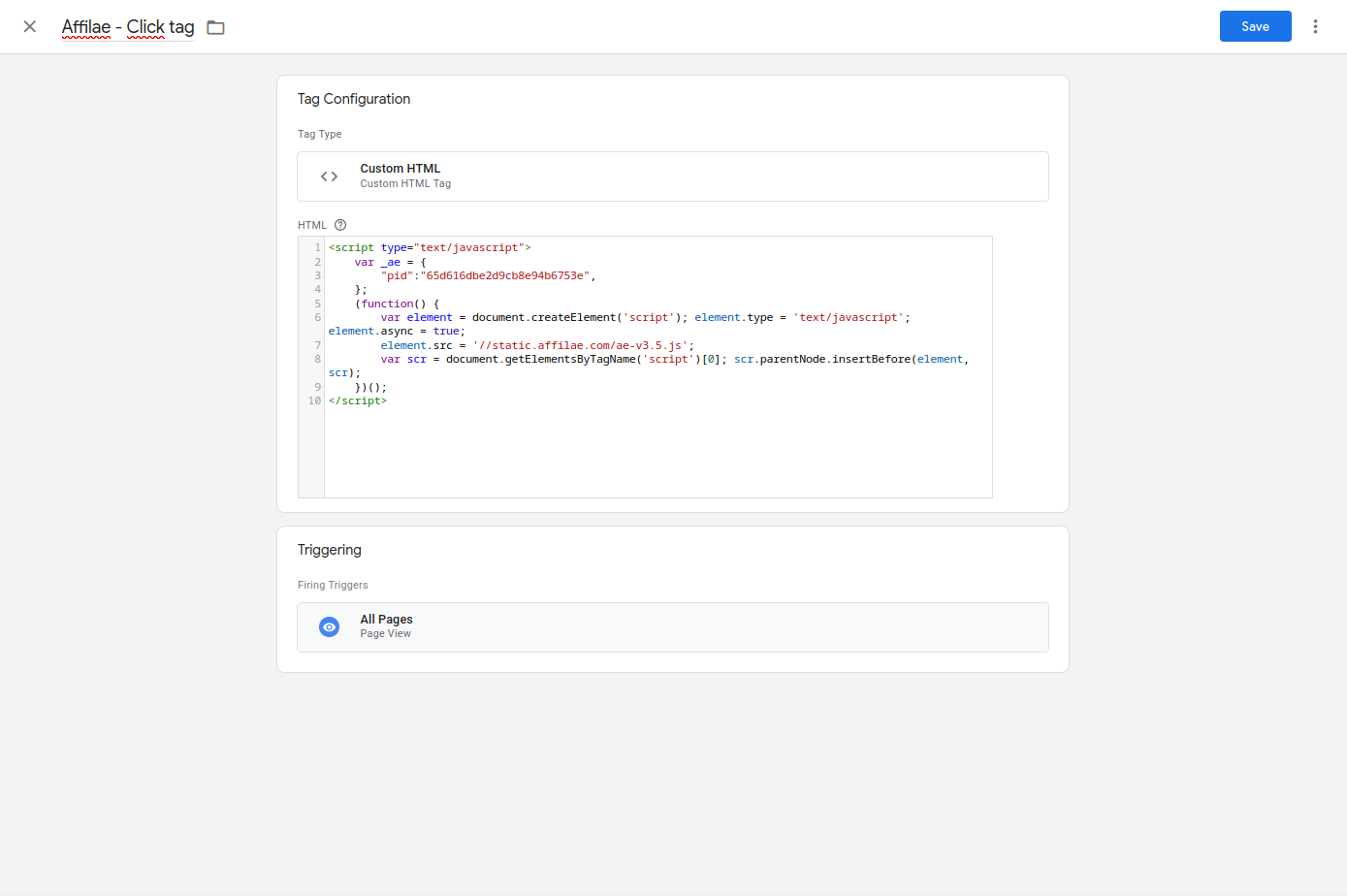
Adding the Affilae Tag (click tracking)
- Log in to your GTM account and go to Workspace ➜ Tags.
- Click New to create a tag.
- Setup:
- Name : Affilae – Click Tag
- Tag configuration: select Custom HTML.
- Code: copy-paste your Affilae script (available in your program under Tracking ➜ Custom integration ➜ Track clicks).
- ⚠️ Important: update the variable
_aewith your Program ID (e.g.,5f03acf00000000000000000).
- Trigger: select All Pages.
- Save and publish.
Conversion Tracking Tag
Create dataLayer variables
For each conversion data point, create a variable.
Conversion ID
- Variables ➜ New
- Name: dl_conversion_id
- Type: Data Layer Variable
- Data Layer Variable Name: dl_conversion_id (according to your dataLayer)
- Version: 2
Amount (excl. tax)
- Variables ➜ New
- Name: dl_conversion_amount
- Type: Data Layer Variable
- Data Layer Variable Name: dl_conversion_amount (according to your dataLayer)
- Version: 2
Additional variables (if needed)
Repeat for: customer, payment, voucher, etc.
Create the trigger
- Triggers ➜ New
- Name: purchase
- Type: Usually Purchase or Custom Event
- Configuration: based on your conversion event
- Save
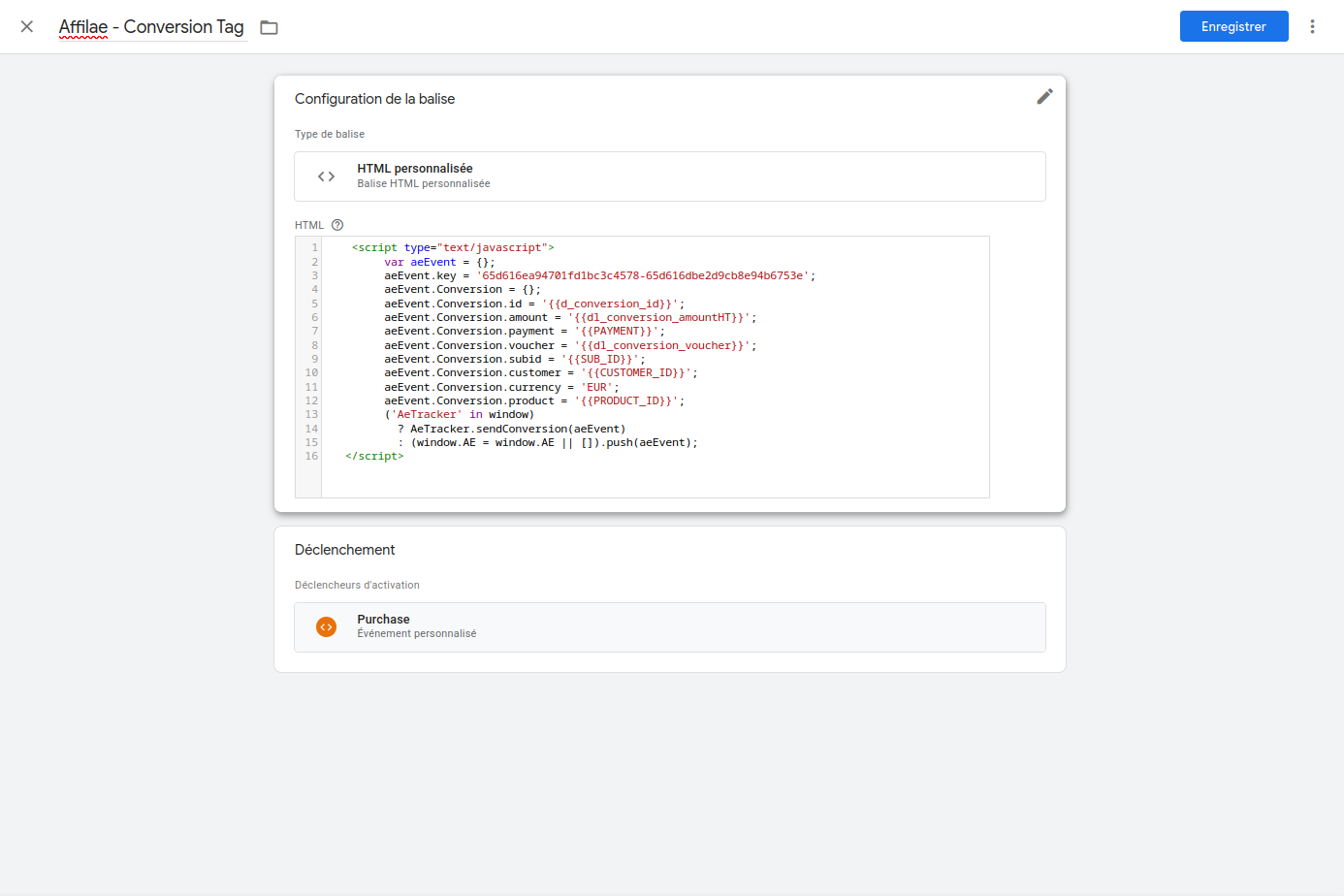
Create the conversion tag
- Tags ➜ New
- Name it
- Type: Custom HTML
- Get the script:
- In Affilae: Settings ➜ Tracking ➜ Custom Integration ➜ “Track conversions”
- Copy the script
- Configure variables: replace values with your GTM variables.
- Trigger: select purchase.
- Save and publish.
Multiple Programs
If you have several Affilae programs:
- Create a new conversion tag for each program (different KEYs)
- Reuse existing variables and triggers if appropriate
- Test each program individually
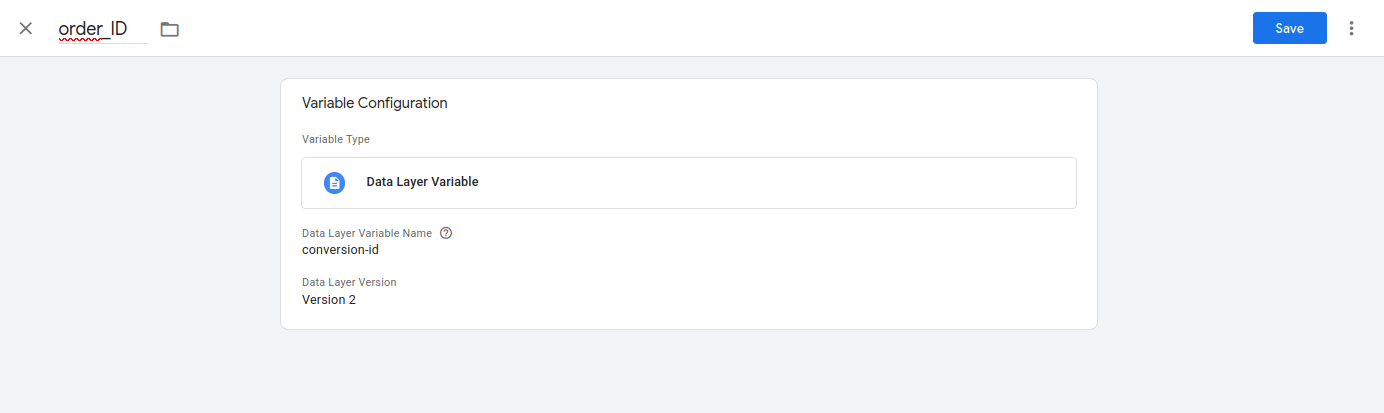
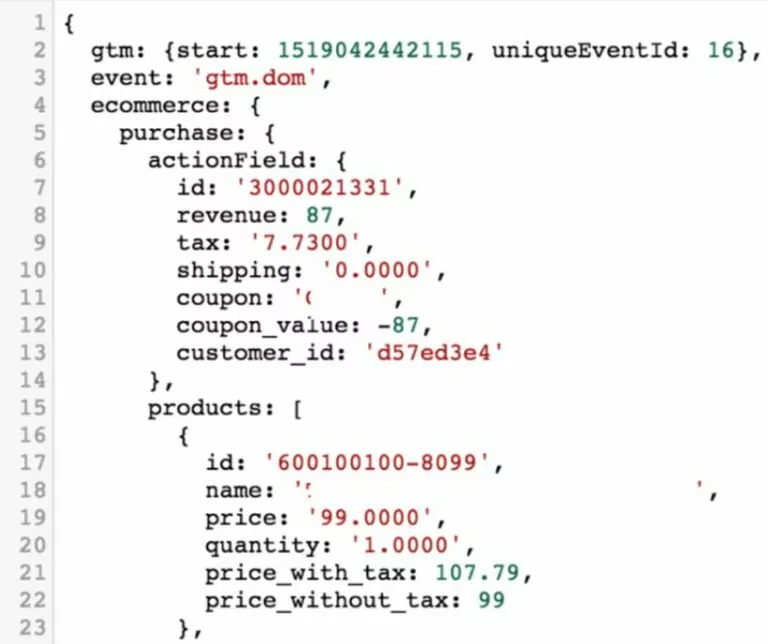
Here, for example: The name of the data layer variable must be: ecommerce.purchase.actionField.id (the path must be complete).
Testing & Validation
Before launching
GTM Preview mode:
- Enable preview mode ➜ add a tracked link
- Test an end-to-end journey (click ➜ conversion)
- Check that the tags fire
DataLayer variables:
- Verify that your variables retrieve the correct values
- Test with real data
In Affilae:
- Verify that clicks are received
- Verify that conversions are received
- Check amounts and data
Help
Tracking not working?
- Untracked clicks: check the Program_ID
- Missing conversions: check your dataLayer variables and the KEY
- Empty variables: verify the variable names in your dataLayer
Support
- Test step by step
- Contact Affilae Support with the details of your configurations.
➜ Parameters to be entered :
| Variable | Mandatory | Value |
|---|---|---|
| KEY | Yes | The key is provided on the “conversion code” page accessible from the “Config” menu of your affiliate program. e.g. Example : 5f04fe700000000000000000-5f04fe700000000000000000 |
| ID | Yes | Fill this parameter with a unique identifier, the simplest being the order number. If you’re using this code to subscribe to your newsletter and you don’t have a unique identifier, we advise you to use a Hash (e.g. MD5) from the surfer’s e-mail, for example. |
| Amount | Yes for sales | Total amount of the order, excluding VAT, which will be the basis for calculating the commission and sales generated. e.g. 123.45 |
| Payment | Yes if the conversion is linked to a payment | If conversions are subject to payment, specify the method chosen by your customer, otherwise leave blank:
|
| Customer | Yes | Please use an identifier that will not change over time, |
| Cv | No | Custom variable that will be returned with the conversion, and available in the interface and API. Allows you to assign your own identifier to a conversion. |
| Voucher | No | Variable used to identify the promo code associated with a sale. The code is case-sensitive. Use `;` as separator to add multiple codes. |
| Product | No | List of product IDs, separator `;`. |